
What is an IP Address?
An IP address is a unique identifier that identifies a device on the internet or a local network. It’s assigned to your device by your Internet Service Provider and is unique to your location. An IP address is shown as a sequence of four numbers separated by dots, for example: 123.456.78.91.
Step 1: Find Your IP Address
Finding your IP address is easy. Simply visit https://whatismyipaddress.com/, and your IP address will show next to IPv4.
Step 2: Exclude Your IP Address on Google Analytics
To exclude your IP address on the GA4 platform, you’ll need to have Administrator access to the account. Here’s how:
- Log into your Google Analytics account
- Click the Admin icon in the bottom left corner

- Select Data Streams under the Property menu
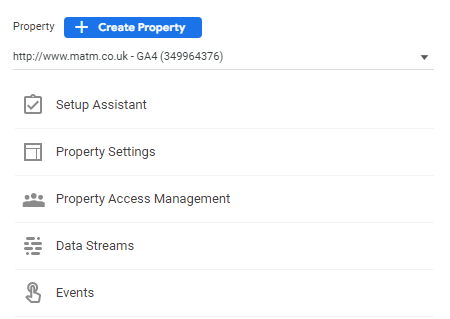
- Under Web, click on your website

- On the pop-up screen, click Configure tag settings
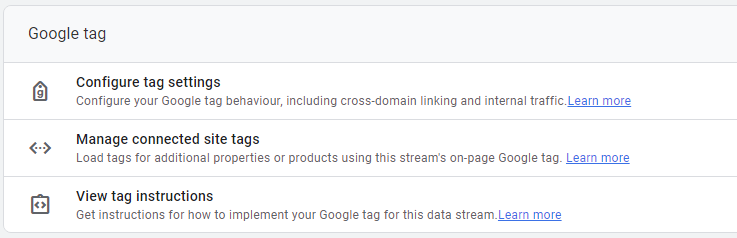
- Select Show all in the Settings box to increase the drop-down menu
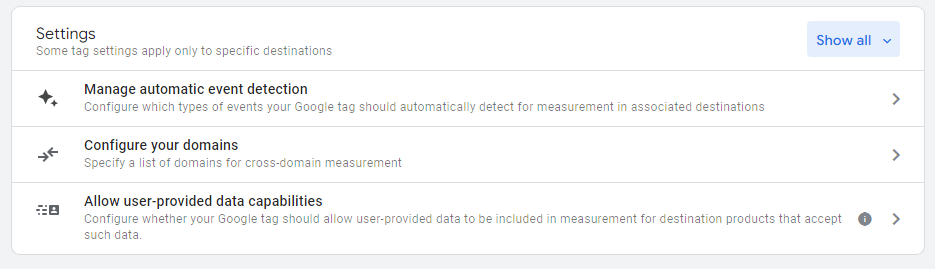
- Select Define Internal Traffic
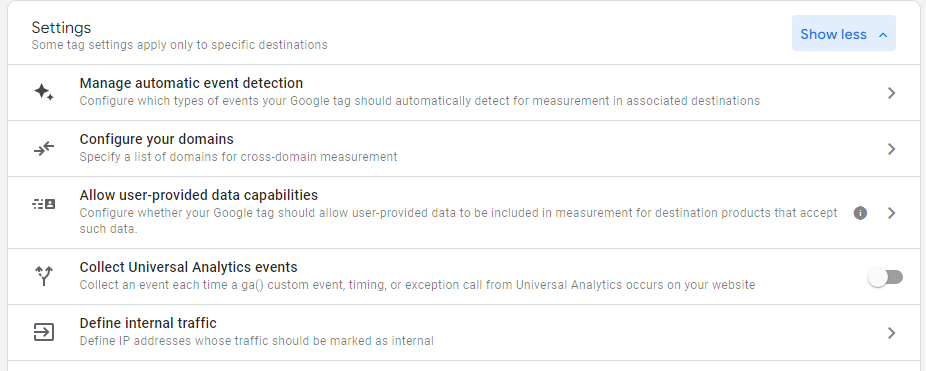
- Click Create
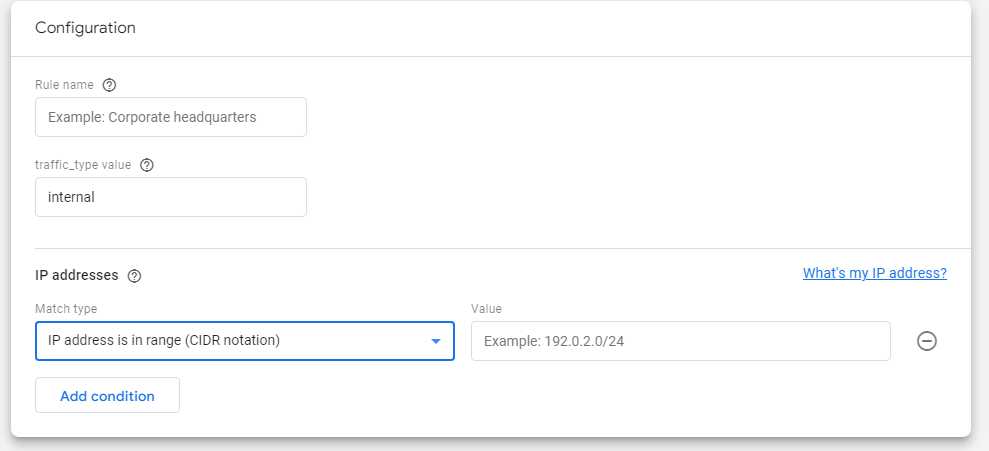
- Decide on a Rule Name, for example: matm office
- Set the traffic_type_value as internal
- Select “IP address equals” from the drop-down menu under IP addresses and add your IP address in the Value box next to it.
- If you have multiple business locations to exclude, click Add Condition to add more IP addresses
- Click Create in the top right corner
Under Define Internal Traffic, you’ll see a list of all the IP addresses excluded from your tracking. This will give you a clearer picture of how your customers are interacting with your website.