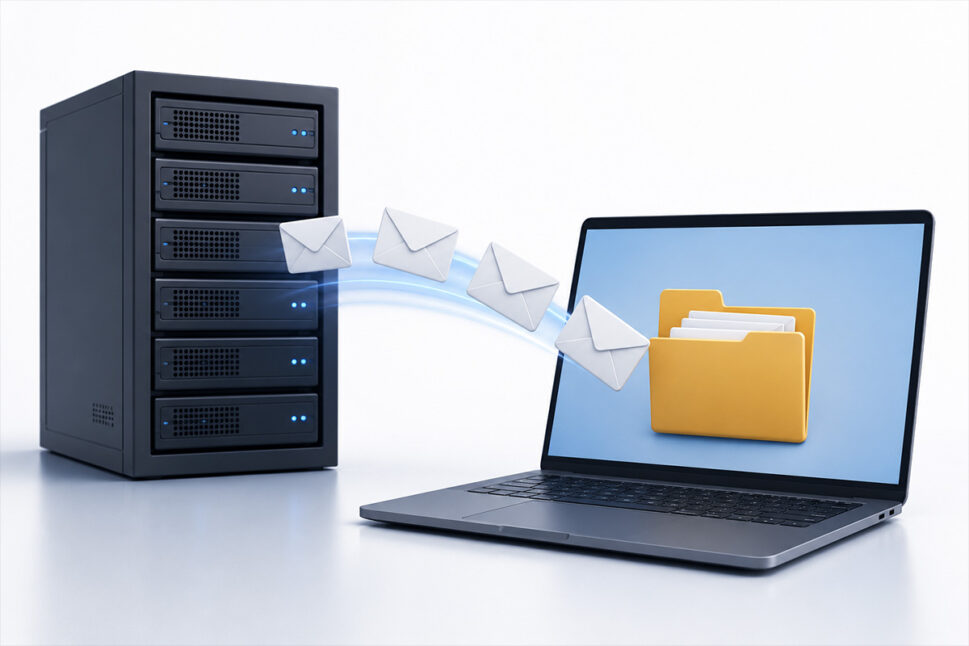
Managing storage space is one of the biggest bugbears for people with Outlook email accounts. If you do not remove unwanted emails regularly, storage space can run out, and your emails can grind to a halt.
What many people don’t realise is that when using IMAP, your emails aren’t stored on your PC. Instead they are stored on your email server, and every time you want to look at them, the computer gets them from the server and shows you them.
This means, that all the emails that show in your inbox, are all on the email server, taking up space until you delete them.
If managing emails sounds like more hassle than it’s worth, we can handle it for you. From setting up reliable email hosting to sorting your web and domain management – no nonsense, just solutions. Call us on 01952 883 526 or email [email protected]
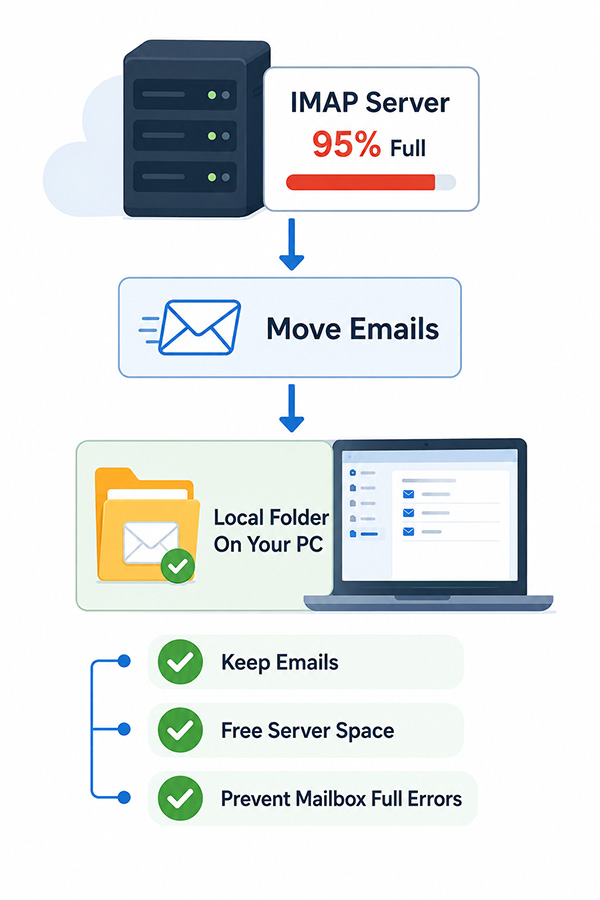
Removing IMAP emails
We have created this step-by-step guide about how to remove the emails stored on the server, while keeping them on your computer.
This guide is only for an IMAP account. If you have a POP3 account, see our guide for removing POP3 account emails from an email server.
Managing emails is easier than you may think. It can be done quickly with a few clicks. Try our step-by-step guide to see how.
Prefer someone to take care of your email setup, backups and hosting so you don’t have to? That’s what we do — email, web, and all the support that keeps things running smoothly. Get in touch at [email protected] or 01952 883 526.
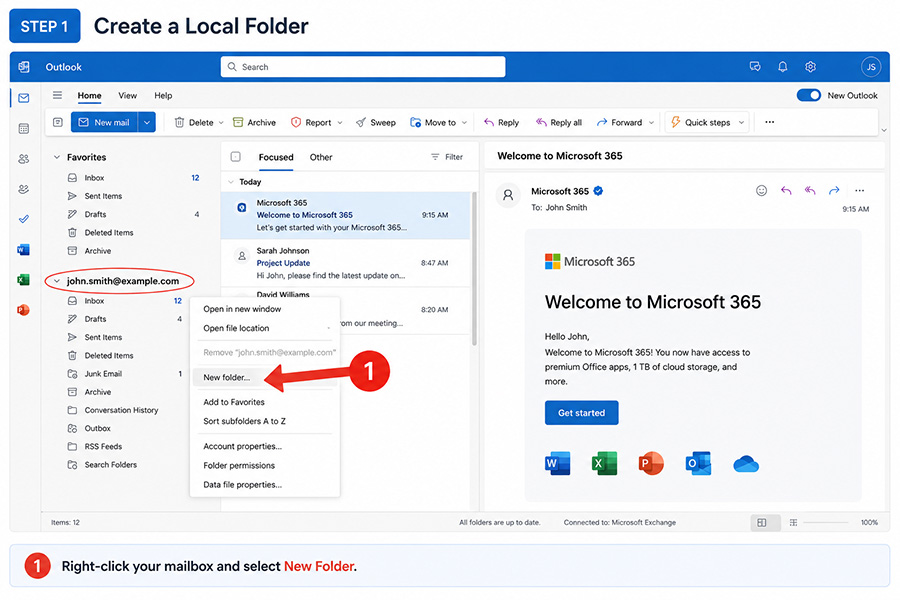
Step 1: Creating a folder
First, you need to create a folder in outlook to save your emails in. To do this, you need to right click on your mailbox. This is usually your email address.
Now, click on ‘New Folder’. You can name the folder whatever you like, “Local folder” is fine for now, though.
Step 2: Select the Emails you want to keep
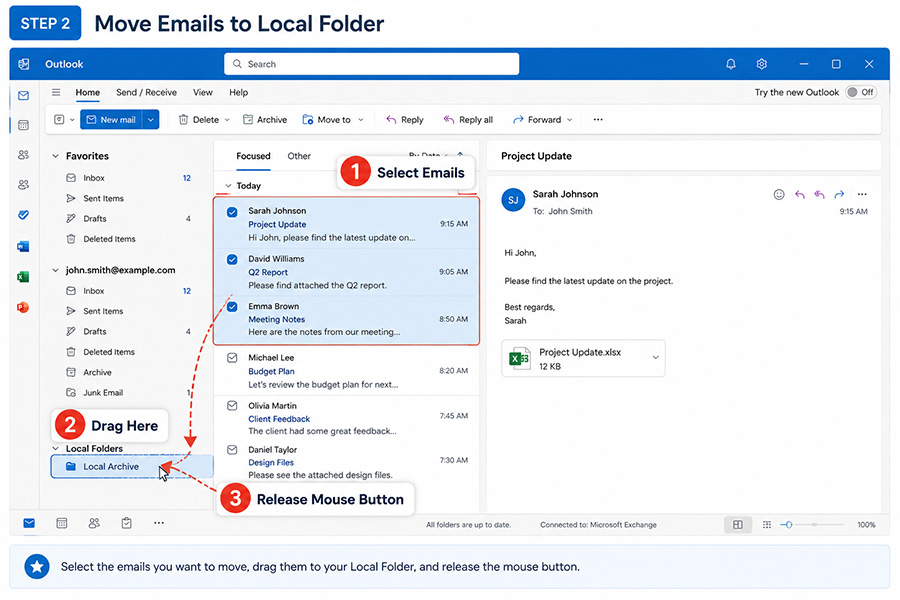
Once you’ve created the folder, you need to move your emails from the server into it. To do this, select all the emails you want to keep, if you want to keep all of them, you can select them all by holding ‘ctrl’ and press the ‘a’ key, or select them in bulk by selecting the first one, holding shift and clicking the last one.
Once you have them selected, all you need to do is drag them into the ‘local folder’ and they will be moved across to there.
Step 3: Deleting remaining emails
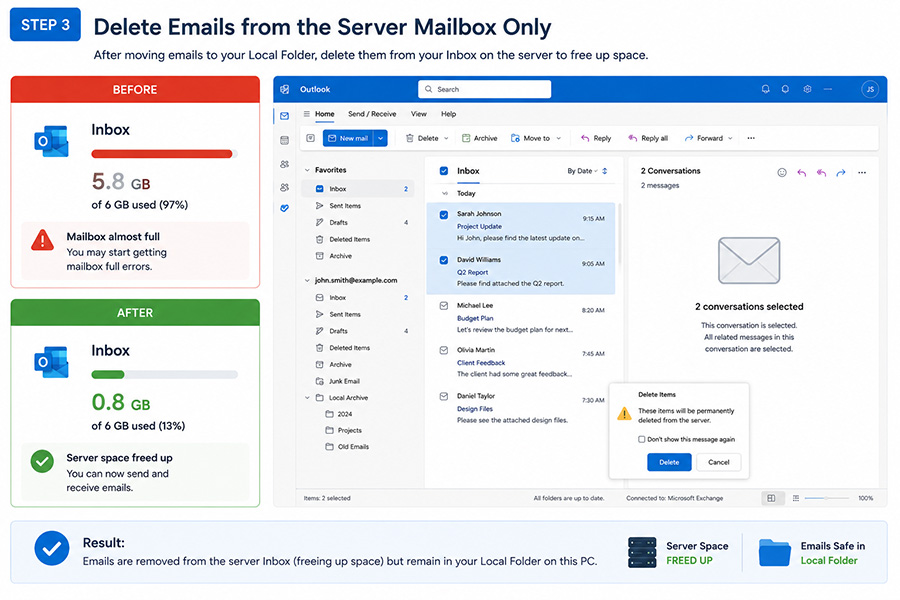
Finally, to free up space on the emails server, you need to delete the remaining emails from your inbox.
It is important that you are careful when doing this, make sure you only delete them form your inbox folder, not the local folder. But don’t worry; as long as you have copied them into the local folder correctly, this won’t delete them completely, just take them off the server.
Always do this with caution to make sure you don’t delete something you wanted to keep. Only the inbox and folders inside the inbox are kept on the server, and so the emails in here are the ones you need to delete, not the ones in the new local folder you just created.
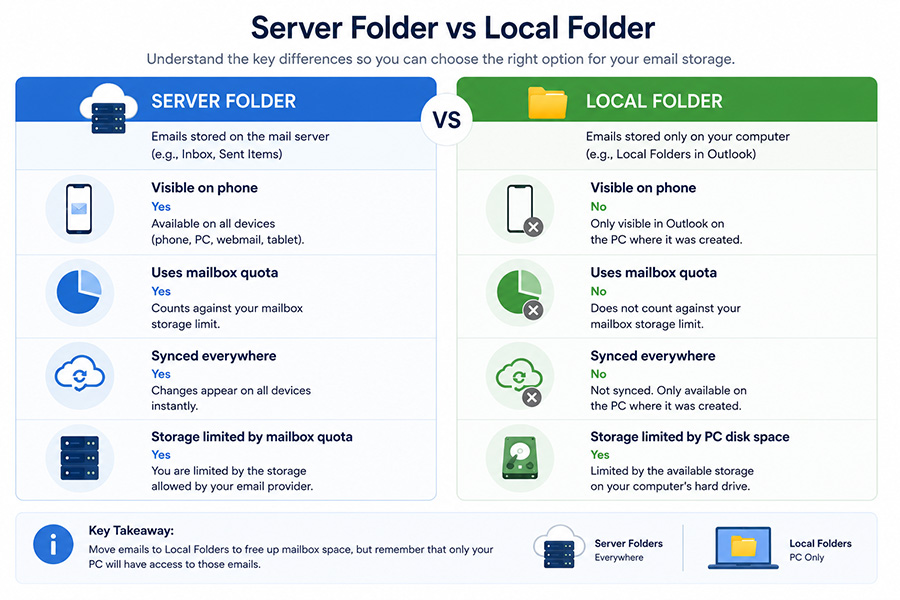
Difference between Server Folder vs Local Folder
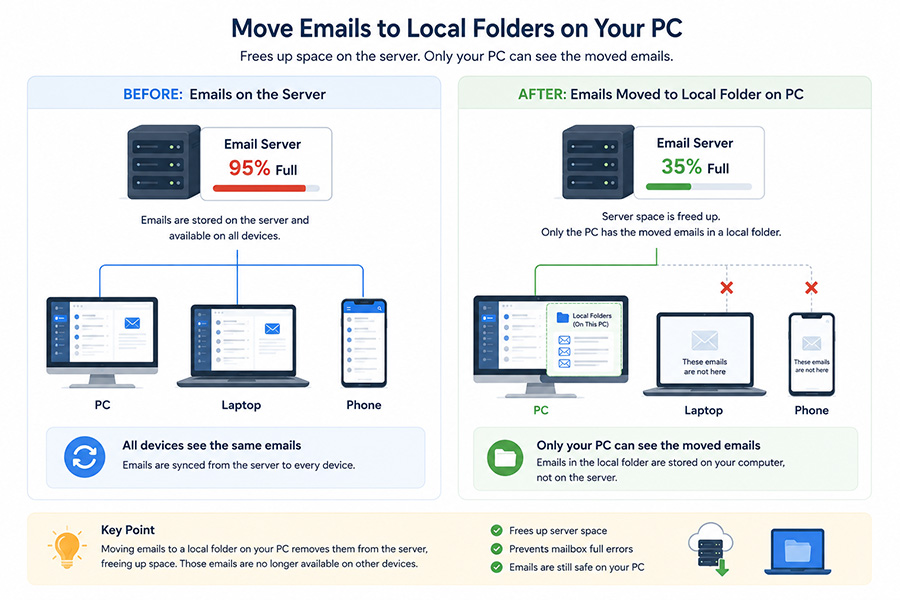
mails stored in Local Folders are only available on this PC and will not appear on phones, tablets, webmail, or other computers unless they are backed up or transferred.
Final Outcome: More Space, Same Important Emails
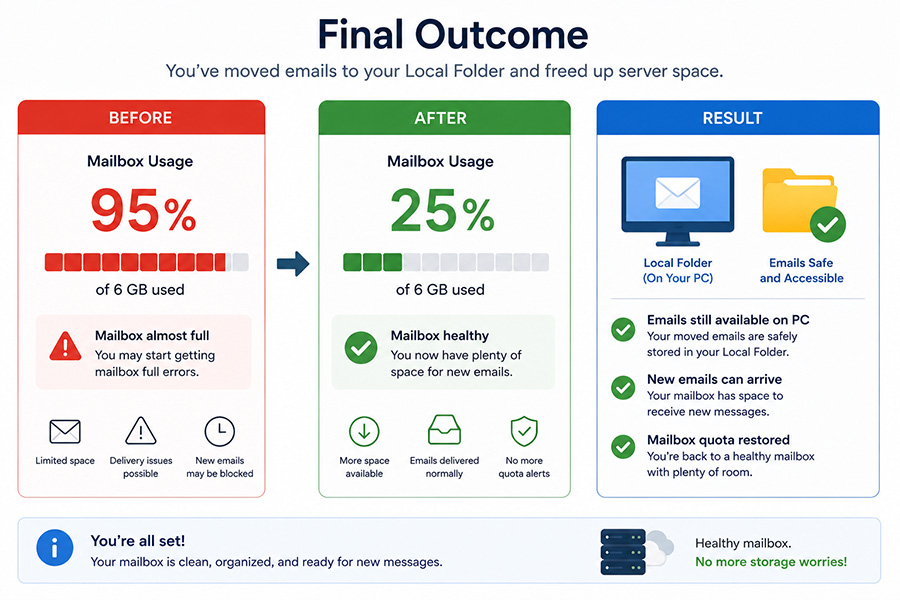
Once you’ve moved older emails into a Local Folder and removed them from the server mailbox, you’ll immediately free up valuable storage space without losing access to those messages.
Your mailbox usage drops dramatically, giving your email account room to receive new messages, send emails reliably, and continue syncing without storage warnings or quota errors.
The emails you’ve archived remain available in Outlook on your PC, so you can still search, open and reference them whenever needed. At the same time, your server mailbox stays lean and efficient, helping to improve performance and reduce the risk of reaching your storage limit again.
The result?
✓ Archived emails remain accessible on your PC
✓ New emails can arrive without mailbox quota issues
✓ Server storage is freed up for day-to-day email activity
✓ Your mailbox is healthier, faster and easier to manage
Important: Emails stored in Local Folders are only available on the computer where they are saved. They won’t appear in webmail, on your phone, or on other devices unless they are backed up or transferred separately.
To make sure your emails aren’t taking up too much space and to keep them clean, you should do this exercise regularly. This is because if you use up more space than you are allowed, you could end up being cut off until you reduce the size, this would mean you may not receive new emails to your account, So it is essential that you keep your mailbox under control
Need a hand with your emails or website?
Whether it’s setting up new email hosting, improving your web performance, or just having someone you can call when things stop working — we’ve got you covered.
Contact Jake on 01952 883 526 or email [email protected].